When you download a NotebookLM file, it comes as a PDF or PPTX, where each slide is basically an image.
To solve this issue, we’ve shared two free ways to convert NotebookLM PDF slides to editable PowerPoint. Have a look!
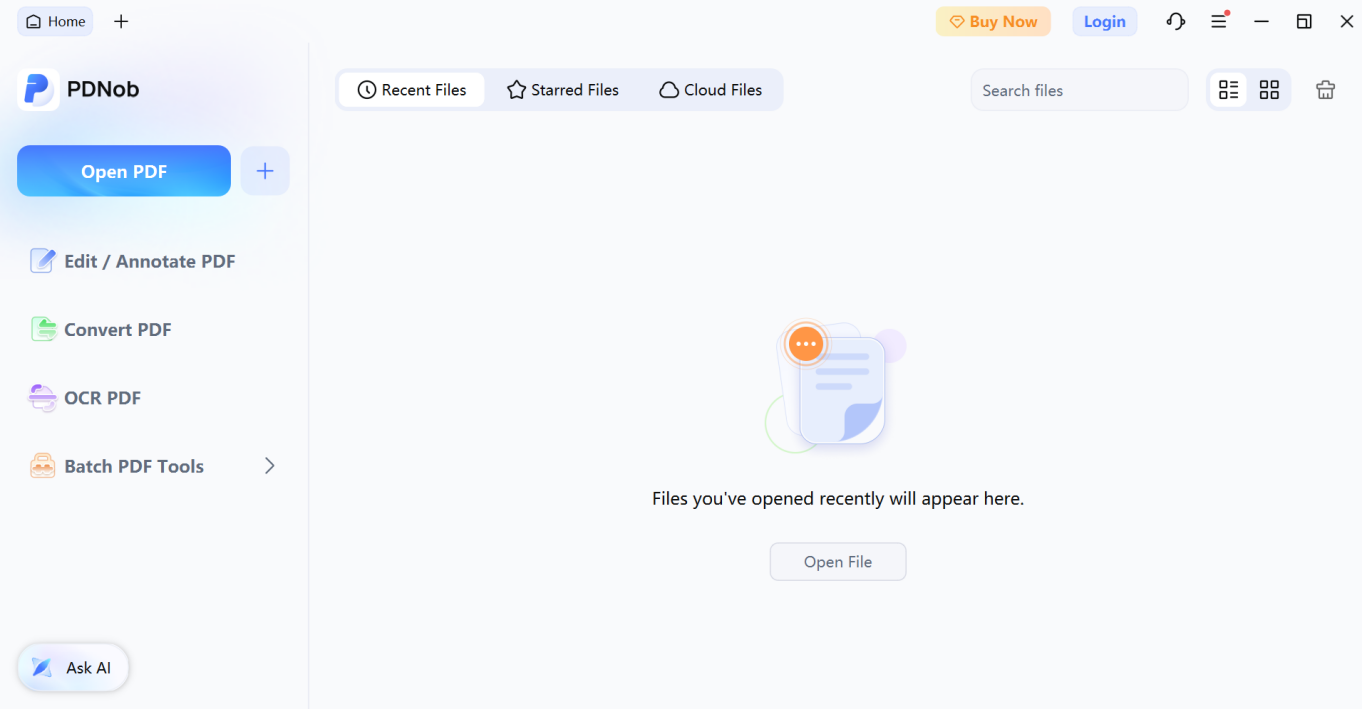
If you want to maintain quality, Tenorshare PDNob NotebookLM PDF to PPT converter is the best and easiest way to convert NotebookLM PDF slides to editable PowerPoint. It’s designed for this task, using OCR to read image-based PDFs, separate text from backgrounds, and export them as PPTX files.
Unlike regular converters, which treat each page as one image, PDNob recognizes different elements like titles, bullet points, and graphics and converts them into separate, editable parts. Besides, it offers high OCR accuracy (around 99% for clear slides), and functions offline, so your files stay private. The new PDNob 2.0 version even offers better OCR controls, and advanced configurations. Here’s what more it offers:
Follow the steps beneath to convert NotebookLM PDF to PPT for free:
Step 1: Download, install, and execute Tenorshare PDNob on your computer. Then, choose “OCR PDF” to upload the NotebookLM PDF slide.
Step 2: Next, adjust the OCR settings. Tap “Advanced Settings” for more configuration. Tap “Apply.” Then, hit “Perform OCR.” This will convert NotebookLM PDF to slides for editing.
Step 3: Afterward, if you want to edit the slide before conversion, head to “Edit” to change font, text, background, etc. For highlights, annotations, etc., choose a tool from the “Comment” tab.
Step 4: Finally, save the changes and head to “Convert” and choose the “P” icon to convert the NotebookLM slide to PPT. Choose the destination folder and hit “Convert.” This will convert NotebookLM PDF to PPT.
Step 5: Afterward, open the converted PPT into PowerPoint and make changes as desired.
If you have a NotebookLM deck with standard layouts and clean text, you can create NotebookLM editable slides directly in PowerPoint. But first, you’ll have to download the slide in PPTX format from NotebookLM. Then, use the “Edit Picture” feature in PowerPoint 365 to extract text from images.
However, this feature doesn’t have high OCR accuracy and is not suitable for complex layouts. If you want basic OCR, here are the steps to convert the NotebookLM PPTX file into editable slides:
Step 1: Download your slides from NotebookLM as a PPTX file. Then, open the file in PowerPoint. Select the slide. Tap the “Picture format” menu in the “Home” tab.
Step 2: Select the slide. Choose the “Edit Picture” option from the “Picture Format” menu.
Step 3: A new window will pop up. You’ll see an “Edit Text” button on it. When you click it, PowerPoint will make the text editable, which you can edit afterward.
You can get the best results from your NotebookLM slides to PPT conversion with a few simple steps. The following tips will help improve accuracy and reduce the time you spend fixing errors afterward:
NotebookLM slides are great for quickly creating PowerPoint presentations. But while you can now export them in PPTX format, it’s not easy to convert NotebookLM PDF slides to editable PowerPoint. Though PowerPoint 365 offers an “Edit Text” feature for conversion, it’s limited and lacks accuracy for complex layouts.
A professional converter like Tenorshare PDNob is a more appropriate choice. It offers high OCR accuracy and can properly detect and separate text, images, and layouts. With its advanced OCR settings and built-in editing tools, it also gives cleaner results without losing quality.