Your child's first 3D print does not need to be impressive. It needs to be simple enough to finish, clear enough to understand, and fun enough to make them want to try again.
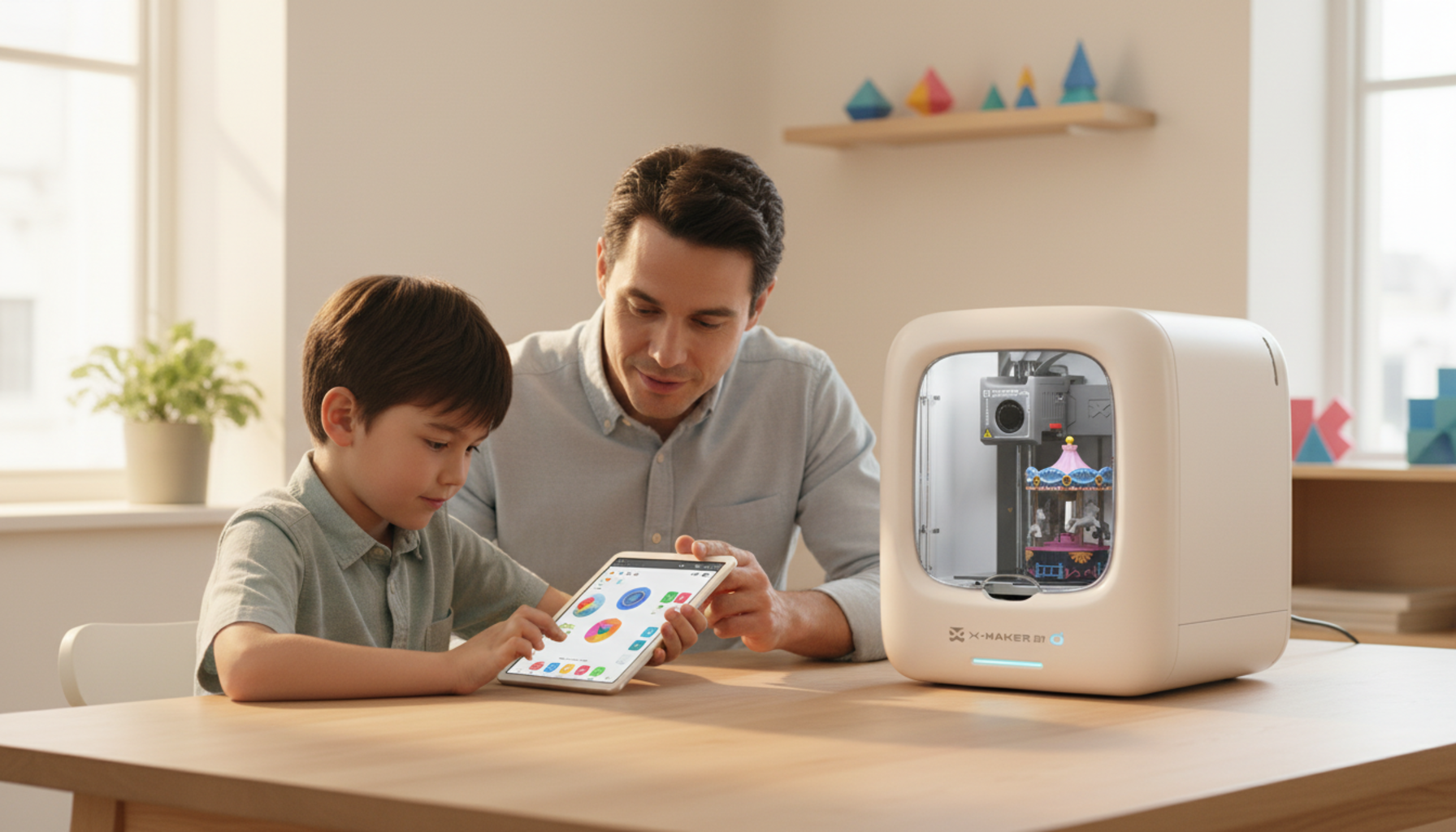
Parent and child at a light wood table preparing a first 3D print together, with a small desktop 3D printer and a tablet showing a kid-friendly 3D design app between them.
THE 8-STEP FIRST PRINT WORKFLOW
For many parents, the first 3D printing project can feel intimidating. There are models to choose, materials to prepare, settings to understand, and safety questions in the back of the mind. Parents do not need to become 3D printing experts before helping a child get started — they need a clear first-print workflow.
A good first 3D print should answer three simple questions: What are we making? What does the child do? What does the parent handle? Once those roles are clear, the experience becomes much easier.
The first project should not be the most ambitious idea your child can imagine. It should be something small, finishable, and easy to understand. A complicated multi-part model may look exciting, but it can create frustration if it takes too long or needs too much assembly. A better first project gives the child an early win.
Good first project ideas:
QUICK CHECK · IS THIS A GOOD FIRST PROJECT?
☐ Can my child understand what this object is?
☐ Can it be finished without too many parts?
☐ Does it have a clear, recognizable result?
☐ Can it be played with, displayed, used, or gifted?
☐ Is it small enough for a beginner session?
The best first print is not the most advanced one. It is the one that helps a child say, “I made this.”
A smooth first print starts with clear roles. The child should have ownership of the creative choices. The parent should handle setup, supervision, and troubleshooting support.
If the parent does everything, the child becomes a spectator. If the child is left with too many unclear steps, the project becomes overwhelming. The best first-print experience gives the child creative ownership and gives the parent a clear, manageable support role.
A good workspace makes the first print feel calmer. You do not need a maker room or workshop — a stable table, a clear surface, and a visible location are enough for most family projects.
Before printing, run through this quick prep:
A small tray or bin for “current project” items helps keep the table organized. It also helps children understand that 3D printing is a process with steps.
Many first-time families get stuck because they start with a blank design tool or a huge library of models without knowing what to choose. A guided app or model library makes the first print much easier — instead of asking a child to design from scratch, it gives them a clearer starting point.
For example, a guided starter printer for first-time family printing — like AOSEED's X-MAKER JOY — can help younger creators begin with simple project choices, app-led customization, and a more parent-friendly workflow. Children take part in the creative decisions without needing to understand advanced 3D design tools first.
FIRST CUSTOMIZATION · KEEP IT SIMPLE
☐ Choose one model
☐ Pick one color or style
☐ Add one small personal detail (a name, an initial, a small shape) if available
☐ Avoid complicated edits — save those for the next print
The goal of the first print is confidence. A child should finish the project feeling curious, not exhausted.
Alt text: A child selecting a model on a tablet with a kid-friendly 3D design app, with a desktop 3D printer in the background and a parent's supportive hand at the edge of the frame.
Once the model is chosen and the setup is ready, start the print. Before it begins, explain to your child that 3D printing takes time. Unlike drawing or building with blocks, the object appears layer by layer. Watching that process can be part of the experience.
Parents should supervise the first few minutes especially. Children can watch progress, ask questions, and start thinking about how they will use the finished object. While waiting, ask:
This turns waiting time into creative planning time. The child is not just waiting for a machine — they are imagining what the object will become.
The first print should not end as a random object on a table. Give it a role immediately.
A mini car can be raced. A small animal can become part of a story. A desk name plate can be placed in the child's room. A game token can be used during family game night. A small gift can be wrapped and given to someone. This “print-and-play” step helps children understand why 3D printing is different from passive screen time — the digital choice becomes a physical object, and the physical object becomes an activity.
A first print works best when it becomes the beginning of play, not the end of the project.
First prints do not always go perfectly. That does not mean the project failed — it means the family has something to learn before trying again. Keep the troubleshooting process simple, and keep the tone calm. A failed print can become a useful teaching moment.
BEGINNER TROUBLESHOOTING CHECKLIST
☐ Was the model too complex for a first attempt?
☐ Was the workspace stable, with nothing bumping the printer?
☐ Was the material loaded properly?
☐ Did anything move during printing?
☐ Was the print started before setup was fully complete?
☐ Was the object too small or detailed for a first project?
☐ Should the next attempt simply use a simpler model?
Children can learn that making often includes adjusting, trying again, and choosing a better next step. The goal is not a perfect first print. It is a positive first experience.
The best time to choose the next project is while the child is still excited. After the first print, ask one short reflection question: What should we make next? Do you want to make a bigger version? Should we make a friend for this toy? What would you change?
A project naturally grows into another project:
Parents comparing beginner options can look for 3D printers designed for kids' first projects — systems that support simple project selection, clear adult involvement, and repeatable family use, so the second print is easier to start than the first.
Save or print this checklist. Use it before, during, and after the first print.
BEFORE PRINTING
☐ Pick one simple project
☐ Prepare the workspace
☐ Decide what the child does and what the parent handles
☐ Load material or filament
☐ Open the guided app or model library
☐ Keep the first customization simple
DURING PRINTING
☐ Start the print
☐ Watch the first few moments
☐ Keep hands away from the moving machine
☐ Talk about how the object will be used
☐ Let the child name or plan the finished project
AFTER PRINTING
☐ Remove and finish the object with adult help if needed
☐ Use it in play, gifting, display, or a family activity
☐ Ask what worked and what to change next time
☐ Choose the next project while excitement is high
☐ Save a quick note for the next print
Parents do not need to know everything about 3D printing before helping a child begin. They need a small project, a prepared workspace, a clear division of roles, a guided way to choose a model, and a calm plan for what to do if something goes wrong.
The first print should be simple, finishable, and playable. For families looking for a clearer starting point, AOSEED's guided family creativity system brings together kid-friendly 3D printers, app-led project selection, and learning support so the first print feels less intimidating. The real win is not a perfect first print — it is a child who finishes one project and asks, “What can we make next?”