NotebookLM is great at one thing: turning source material into a fast, structured slide deck.
If you already have research notes, PDFs, websites, Google Docs, or long source files, it can turn that material into a presentation draft much faster than starting from a blank slide. Google says Slide Decks are generated from your notebook sources, and you can choose the format, language, length, and a custom prompt before creating the deck.
That makes NotebookLM useful when you want to:
But once the deck is generated, most users hit the same problem:
How do you actually edit the slides properly?
That is where the workflow changes.
NotebookLM is strong at generating slides from sources. It is much less flexible when you want detailed, manual, slide-by-slide editing. So if you want to create and edit slides on NotebookLM the right way, you need to understand where NotebookLM works well, where it becomes limiting, and what the best editing workflow looks like after generation. Google’s own help and Alai’s NotebookLM guide both point to that same split.
NotebookLM works best when your biggest challenge is not design, but information.
It is especially useful when you have too much material and need a clean deck from it. Google describes Slide Decks as a way to turn dense research, brainstorms, and source-heavy content into visual storytelling. The deck is based on your uploaded material, so it is more grounded than a generic prompt-only slide builder.
That gives NotebookLM a few real strengths.
First, it is source-driven. The content comes from your notebook sources, not random filler. Second, it is fast. Google says the deck is created in the background, so you can keep working while it generates. Third, it gives you structure. For users starting from long notes, reports, or documents, that alone saves a lot of time.
Alai’s NotebookLM guide explains this well too: NotebookLM is very good at reading uploaded material, finding the main ideas, and turning those ideas into a polished first draft. That is why it feels useful right away.
This is the part that confuses many users.
NotebookLM does support revisions, but it does not behave like PowerPoint or Google Slides. Revisions create a new deck, and it recommends batching your revisions because each revision generates another version.
So editing inside NotebookLM mostly means:
That works for broad changes like:
But it is not the same as normal hands-on editing.
NotebookLM slides are effectively rendered as flat visual output, which means you do not get normal element-level control. In practice, that means no easy click-and-edit workflow for text, icons, spacing, or layout the way most people expect from a true slide editor.
So the cleanest way to think about it is this:
The creation flow is simple if you prepare the source material properly.
Upload the documents, notes, websites, PDFs, or Google files you want NotebookLM to use. Google’s help makes it clear that the output is based on the notebook sources, so cleaner input usually leads to a better deck.
Choose Slide Deck from the Studio panel. Google says you can also use the pencil icon before generating if you want to define the output more carefully first.
Before you generate, define:
Google says the custom prompt can guide the audience, style, and focus of the deck. This step matters more than most people realize. If you know the deck is for students, executives, clients, or a specific topic, say that clearly.
NotebookLM creates the deck in the background. Once it is ready, review the structure before asking for changes. Check:
This review step is important because random revision loops waste time.
If you only need broad edits, use NotebookLM’s built-in revision flow first.
That is still the fastest option when the changes are structural. For example, if you want the deck to be shorter, more visual, more technical, or more beginner-friendly, prompt-based revision is a reasonable first step. Google’s help supports that workflow directly.
But if you need deeper editing, the process changes.
Use NotebookLM for source analysis, structure, and first-draft generation. That is where it is strongest.
Google says you can download the deck from the three-dot menu. Alai’s guide also points to export as the point where users usually move into a more editable workflow.
This is the key decision point.
If you only need another AI-generated version, stay in NotebookLM.
But if you need:
then NotebookLM alone is usually not enough.
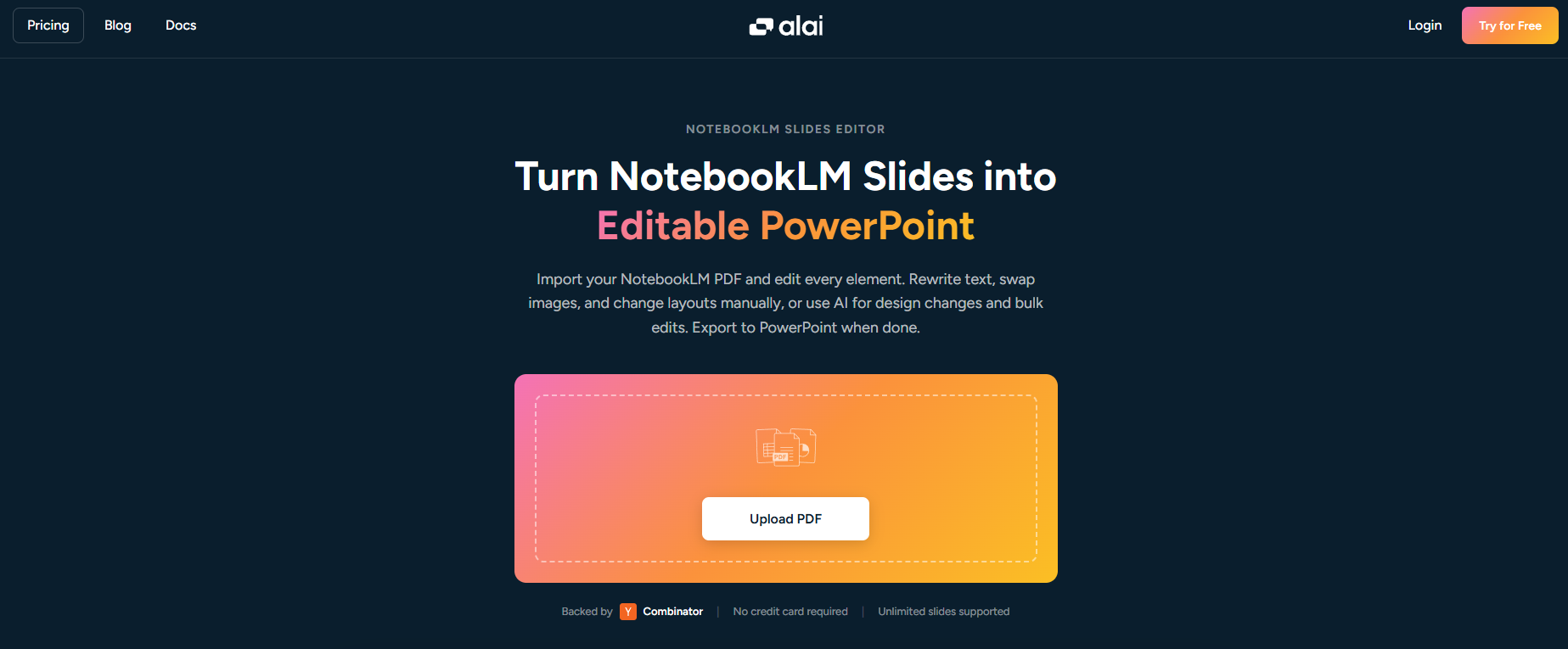
This is where Alai’s NotebookLM Slide Editor becomes relevant. Alai’s guide explains that you can export the deck, upload it into Alai, and then edit the slide content manually or with AI while preserving the structure much better than generic PDF-to-PPT workarounds.
Alai’s guide also compares common workarounds and shows why many of them are weak. Generic PDF-to-PowerPoint converters often leave you with partial extraction or broken layouts. Canva-based workarounds can help in simpler cases, but they often require more cleanup and do not reliably preserve everything. Alai’s own NotebookLM editing workflow is positioned as lower effort with more faithful layout preservation and full control.
Once the NotebookLM deck is uploaded, Alai’s NotebookLM Slide Editor reconstructs the slide into real editable elements instead of leaving it as a locked visual layer. That gives users a much more normal editing workflow.
That means you can:
Additionally, manual edits are instant and do not consume credits, which matters for users doing many small changes. Users can also run AI-assisted editing when speed is more useful than manual tweaking.
That makes the workflow much more practical for:
So using the NotebookLM Slide Editor makes the most sense when you like NotebookLM’s generation but still need real editing control before the deck is finished.
NotebookLM is enough when:
You will probably need another editing step when:
That is the real answer to the query.
NotebookLM is very strong for creating a slide deck from source material. It is not always enough for finishing that deck in a professional, fully editable way.
If your goal is to create slides from notes, research, and source files quickly, NotebookLM is already very useful.
It solves the hardest starting problem well. It can turn information into structure fast, and that is valuable.
But editing is where you need to be practical.
If your changes are broad, stay in NotebookLM and revise with prompts. If your changes are detailed, visual, branded, or team-facing, move into a stronger editing workflow after generation.
That is the most effective process:
Can you edit NotebookLM slides directly inside NotebookLM?
Yes, but mostly through prompt-based revisions. NotebookLM generates a new version instead of giving full element-level manual editing.
What is the easiest way to manually edit NotebookLM slides?
A practical approach is to generate in NotebookLM, export the deck, and then move it into an editing workflow built for editable reconstruction. Alai’s NotebookLM Slide Editor is designed for that use case.
Is NotebookLM good for first-draft slide decks?
Yes. Google’s own materials show it is strong for turning source-heavy material into structured presentation drafts quickly.
When should you move beyond NotebookLM for editing?
When the deck needs brand styling, manual layout changes, editable output, or more polished final presentation work.