Meeting minutes often fail for one simple reason: people do not read them. They are long. They are late. They hide the real decisions. And action items get lost.
In 2026, teams are fixing this by making minutes more interactive. That does not mean fancy design. It means minutes that help people confirm, react, and act. If you use an interactive presentation tool, you can collect decisions, owners, and quick feedback during the meeting—especially on Zoom—then turn it into clear minutes right away.
This guide shows 5 simple steps to prepare interactive meeting minutes that people actually use.
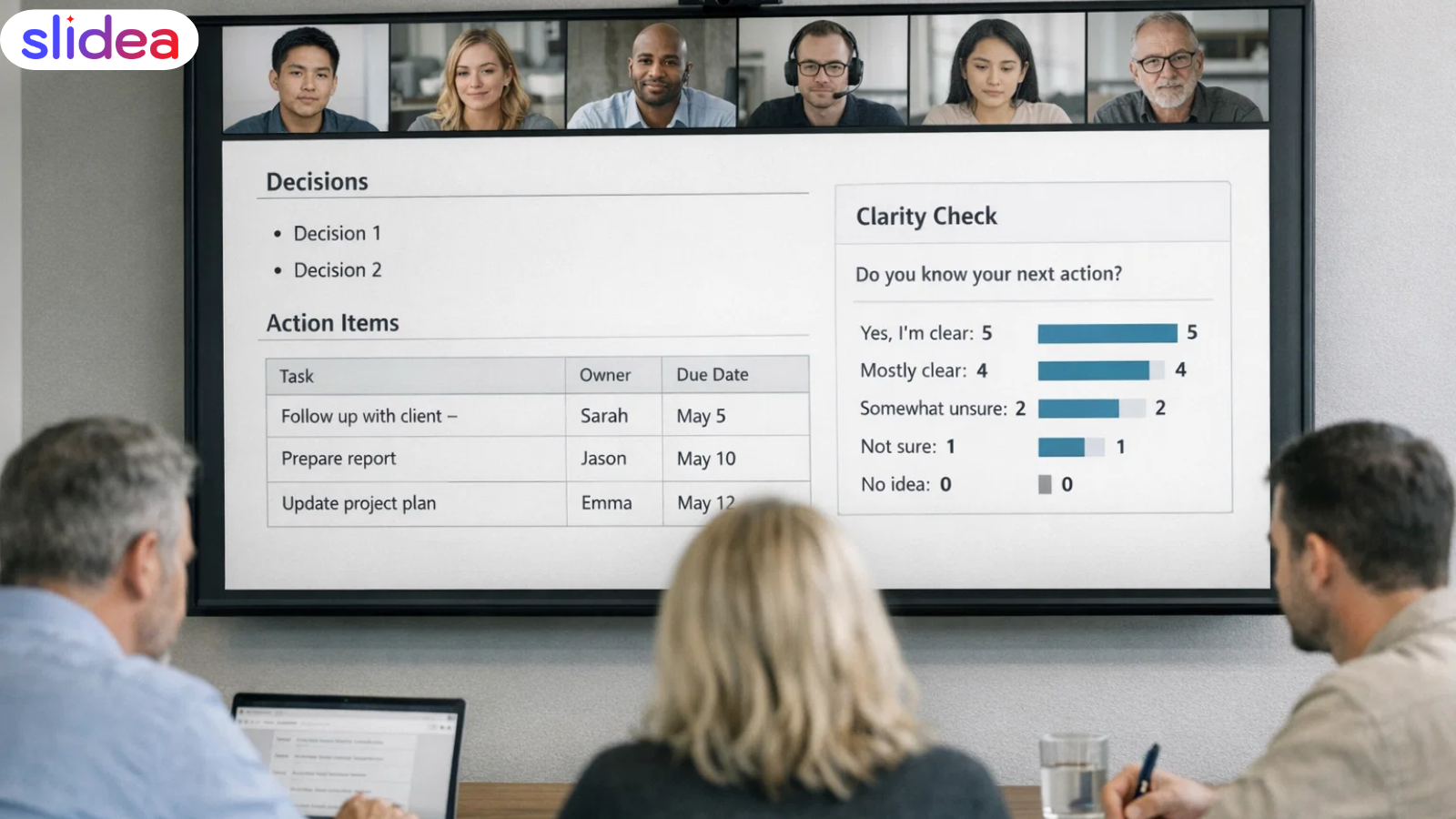
Minutes from engaging discussions are not written after the meeting. They are developed throughout the meeting by validating decisions, owners, and comprehension in real time. The minutes serve as a clean record of what the group agreed on live.
Meeting minutes are a clear, structured summary of a meeting—not a transcript. They capture what was discussed, what was decided, and what actions came out of it. One person records them, but the group should confirm key points before the meeting ends—even on a Microsoft Teams call.
Their value is simple: clarity and accountability. Minutes make sure decisions don’t disappear after the call. They help anyone who missed the meeting understand outcomes fast and give the team a reliable reference when questions come up later. Most importantly, they turn conversation into follow-through.
Strong meeting minutes capture:
Meeting minutes aren’t notes. They’re proof of what was decided and who owns what next. Use this workflow.
Pre-fill this header:
During each agenda item, write only:
If something isn’t a decision, action, risk, or next step, it probably doesn’t belong.
After each major decision, run a quick confirmation check.
Ask one question in chat or poll form:
“Is this decision clear to you?” (Yes / No)
If anyone responds “No,” clarify immediately before moving on.
This confirmation becomes part of the minutes.
Example:
Live clarity check (2 minutes)
Before the meeting ends, ask one final question:
“Do you know exactly what you are responsible for next?” (1–5 scale)
If anyone rates 3 or below, clarify their task immediately.
This prevents follow-up confusion and reduces clarification emails later.
Within the same day:
Keep it short. Minutes should be skimmable in 60 seconds.
Store the approved minutes in one consistent place:
Team folder or shared drive
Know the goal before the meeting starts
If you don’t know what decisions the meeting is meant to produce, your notes will be noisy and useless. Clarify the purpose first.
Use a fixed structure every time
Same layout, same sections. Consistency reduces cognitive overhead and helps others quickly scan the minutes.
Write in bullets, not paragraphs
Long sentences hide meaning. Short bullets force clarity and make action items obvious.
Capture decisions in clear language
Use words like Decided, Approved, or Deferred. Avoid vague phrases like “discussed” or “talked about.”
Assign ownership immediately
An action item without an owner is not an action item. Write the name as soon as the task is agreed upon.
Ignore side conversations
If it doesn’t affect a decision, outcome, or next step, leave it out.
Review and clean up right after
Five minutes of editing immediately after the meeting saves hours of confusion later.
Good meeting minutes are not documentation. They are enforcement. If a decision is not confirmed, it is not real. If an action has no owner, it will not happen. If clarity is not checked live, confusion is guaranteed. In 2026, the best teams don’t write minutes to remember meetings.
They use minutes to make meetings stick.
1) What makes meeting minutes “interactive”?
Interactive meeting minutes help the team confirm decisions and understand next steps. They include decisions confirmed live, action items validated by owners, and a short clarity check before the meeting ends. The goal is not fancy formatting. The goal is quick clarity and follow-through.
2) Can I create interactive meeting minutes on Zoom?
Yes. Zoom meetings often have quiet participants, so a quick poll or chat check helps. Ask one question like “Do you know your next step?” and fix confusion before the call ends. Then your minutes reflect what the group truly understood.
3) How does an Interactive presentation help with meeting minutes?
An interactive presentation helps you collect responses in real time, like decision votes, clarity ratings, or one-word risks. This makes it easier to write accurate minutes and reduces follow-up messages because people confirm understanding during the meeting.
4) How long should meeting minutes be?
Short. Most teams do best with one screen of key points: goal, 2–3 decisions, 4–6 actions, and key risks. If you need more detail, link to the docs or add an appendix. If minutes feel long, people will not read them.
5) What is the best format for action items in minutes?
Use a simple pattern: Task, Owner, Due date, and Proof. One owner per task is important. The team is not an owner. Proof can be a link, file, or message that shows the task is done. This makes follow-up easy and fair.