Certain Windows 10 programs simply won't get the message — they won't uninstall, freeze while uninstalling, or leave lingering remnants. Annoying, isn't it? Don't panic. We'll show you simple and effective methods for forcing the removal of any program from your computer and freeing up the space on a system!
When the normal methods do not work to uninstall stubborn software, the most effective solution might be using a specialized third-party uninstaller. Master Uninstaller is a light and easy-to-use program that allows full removal of unwanted software together with all leftover files and registry keys. This free uninstaller makes the uninstallation process easier and enhances your PC's overall performance as a top-rated system-optimizing utility.
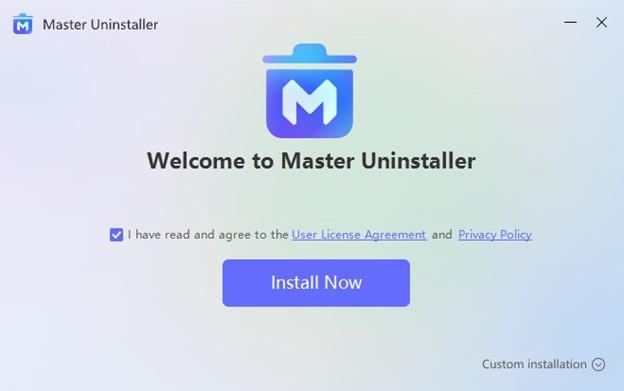
Step 1: Download and install Master Uninstaller
Visit the official Master Uninstaller website and download the latest version compatible with Windows 10.
Step 2: Locate and select the program
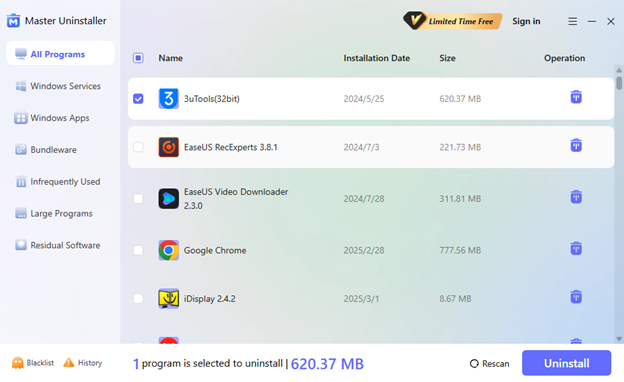
Launch Master Uninstaller and navigate to the All Programs section on the left panel. You will see a full list of installed applications. Find the program you want to force remove, select it, and click Uninstall.
Step 3: Complete the uninstallation process
Master Uninstaller will begin the removal process automatically. Allow a few moments for it to uninstall the program and thoroughly clean up any leftover files, folders, and registry entries, ensuring a complete and forceful removal.
When software resists being uninstalled by the standard method, Command Prompt provides a mighty alternative. With a series of simple commands, you can force Windows to uninstall even the most troublesome software.
Follow these steps:
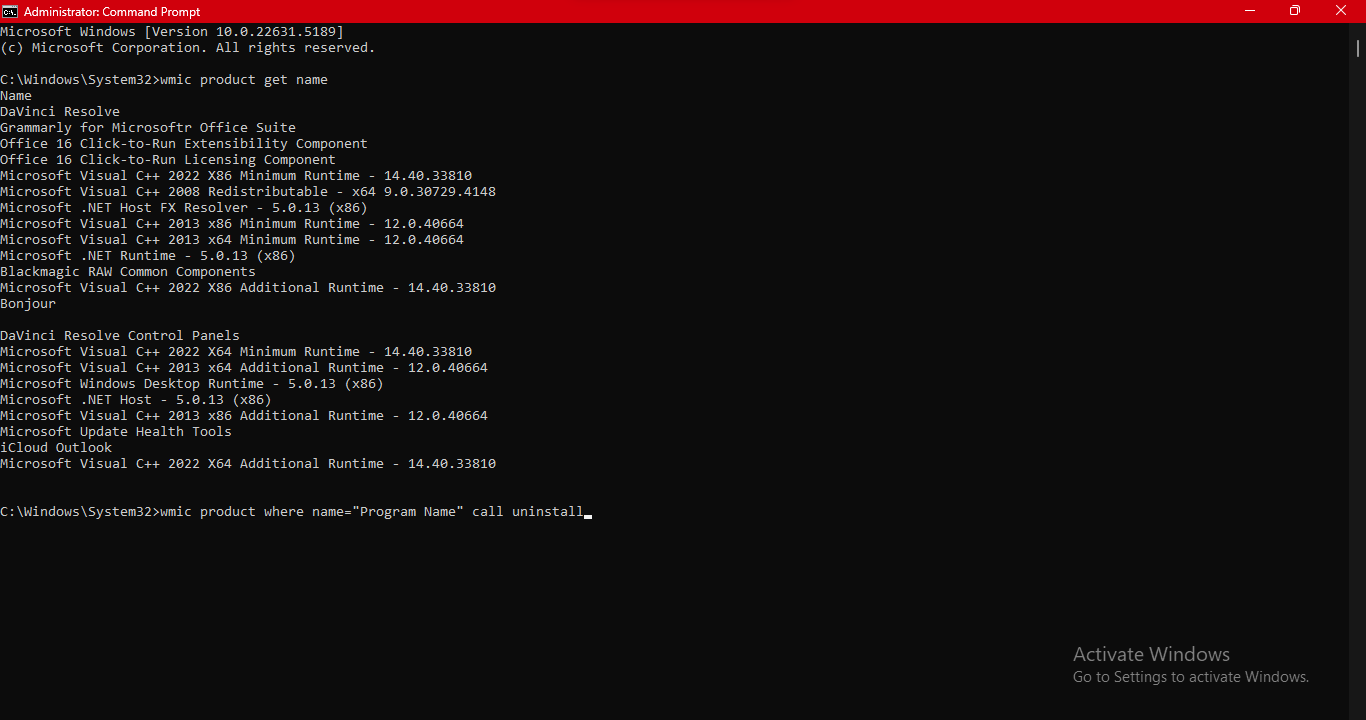
Step 1: Type CMD in the Windows search bar, right-click on Command Prompt, and select Run as administrator. In the Command Prompt window, type "wmic" command and press Enter.
Step 2: Then type "product get name" and press Enter. This will list all installed programs.
Step 3: Find the exact program name you want to uninstall.
Step 4: Type "product where name="Program Name" call uninstall", replacing Program Name with the exact app name, and hit Enter. When prompted, type Y to confirm and press Enter.
On rare occasions, a program might be tricky to remove because background-related processes are currently running, hindering the removal process. Booting Windows 10 into Safe Mode loads basic drivers and services and allows a minimal environment. It usually allows people to uninstall programs that might not be removable under the regular running environment.
Here's how to do it:
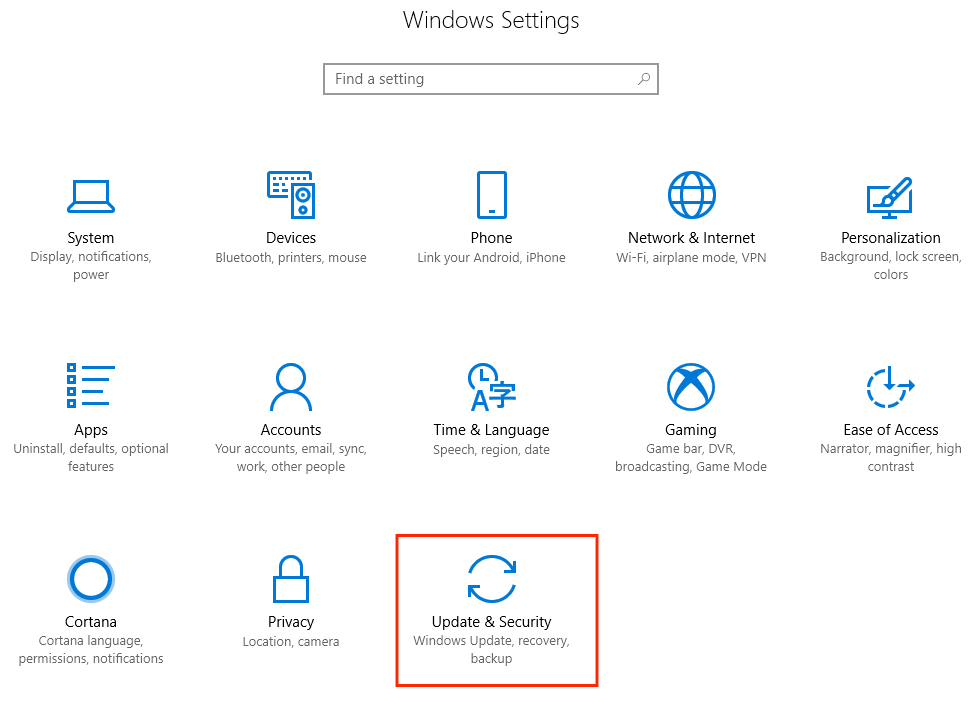
Step 1: Press Windows + I to open Settings, then go to Update & Security > Recovery.
Step 2: Under Advanced Startup, click Restart now.
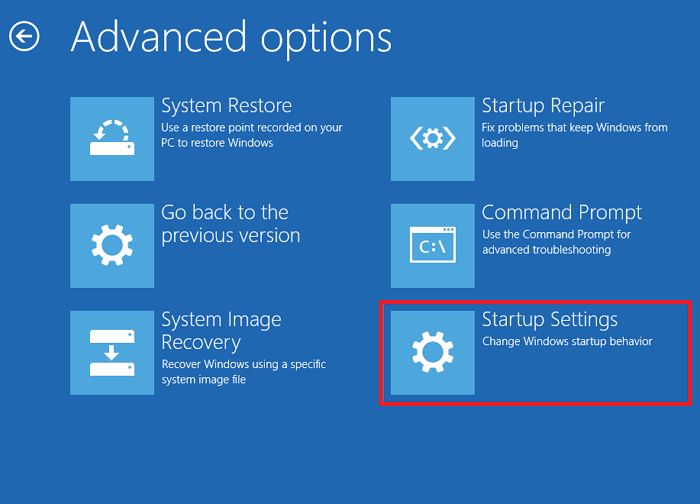
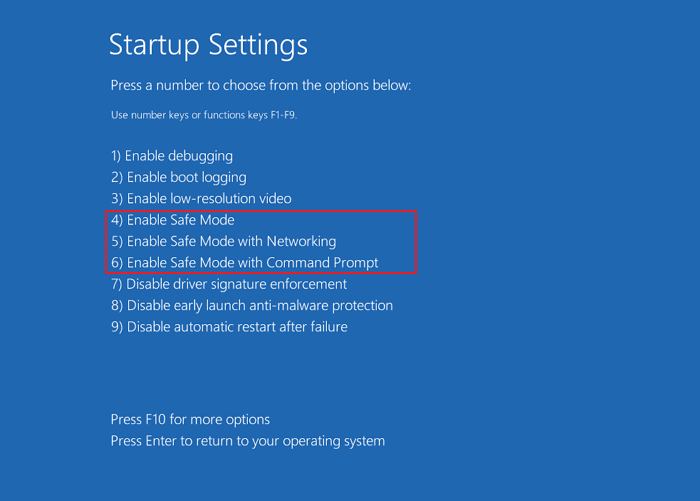
Step 3: Go to Troubleshoot > Advanced options > Startup Settings after your PC restarts and click Restart again.
Step 4: Press 4 to enable Safe Mode.
Step 5: Go to Settings > Apps > Apps & Features once in Safe Mode. Find the stubborn program, click it, and choose Uninstall.
Removing stubborn applications on Windows 10 isn't as complicated as you would imagine. Safe Mode comes pre-equipped on Windows 10, or you could use the native settings or a free utility like Master Uninstaller. Follow the procedure, and experience a streamlined, speedier computer without unwanted software bogging you down.